The BCDC Alpha 25A and 50A chargers show a flashing Control Button LED when a communication fault occurs, typically between the unit and the RedVision App.
This is a soft fault, so the charger will still operate and charge the auxiliary battery. The issue can often be resolved by clearing existing pairings, restarting the phone, and re-pairing via Bluetooth® through the RedVision App.
REDARC recommends seeking the support of a qualified auto electrician or technician.
Important
For your safety, REDARC recommends installation by a qualified auto electrician or technician. Our trusted REDNetwork is made up of professional auto electrical businesses certified by REDARC to install the complete of REDARC solutions. Find Your Local Installer
This information is applicable to the following products:
- BCDC Alpha 25A (BCDC12025B)
- BCDC Alpha 50A (BCDC12050B)
What does this look like?
The BCDC Alpha Control Button LED will flash.
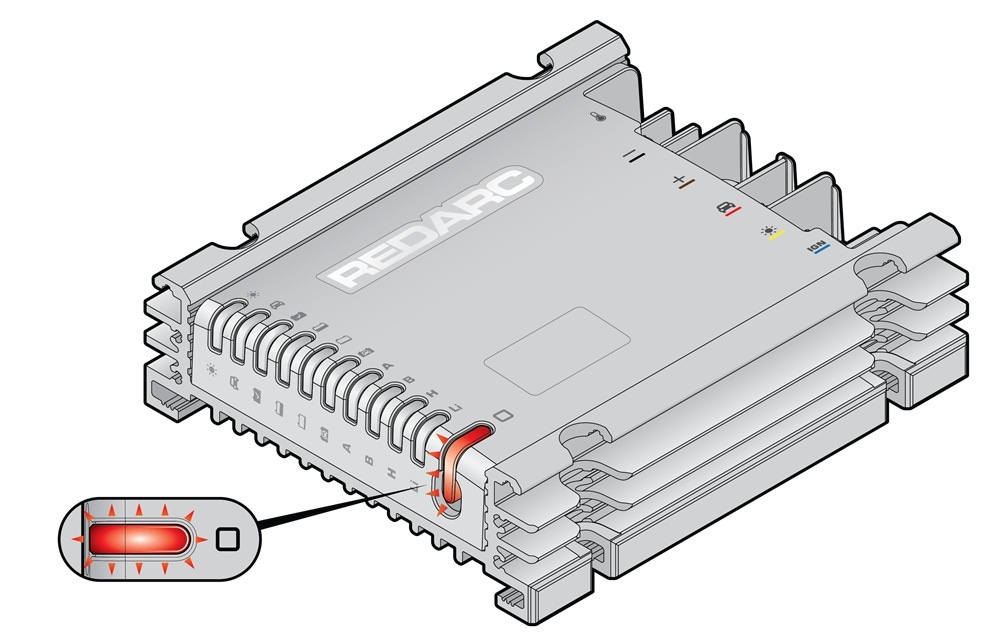
What does the flashing Control Button LED mean?
This fault indicates that the BCDC Alpha has detected a communication fault.
Will the BCDC Alpha still charge my battery in this condition?
In this fault condition, being a soft fault, the BCDC Alpha will continue to charge the auxiliary battery.
What causes this fault mode?
This is caused when the BCDC Alpha is unable to communicate with the RedVision App.
How to determine the cause of the Control Button LED flashing?
Below is a list of the common causes and repairs.
Important
In this article we explain the need for testing to determine the cause of the issue. Testing may involve changes to the installation or wiring. For your safety and accuracy, REDARC recommends engaging a REDNetwork member or a suitably qualified auto electrician - Find Your Local Installer
Communication troubleshooting
When the Control Button LED is flashing red, the RedVision or Configurator Apps are unable to communicate with the BCDC Alpha.
To resolve, try the following:
- In the RedVision App, tap Menu then delete your BCDC Alpha from the Devices list.
- In your smartphone's Bluetooth® settings, remove your BCDC Alpha from your Bluetooth® devices list.
- Switch off and then re-start your phone.
- Clear all BCDC Main Unit pairings. To do this, press and hold the Control Button until the Control Button LED turns blue.
- Press and hold the Control Button again. The Status LEDs will illuminate in sequence. Once all LEDs are illuminated, the Control Button will flash blue rapidly for 1 second to indicate that all device pairings have been cleared.
- Re-pair your smartphone and Main Unit by following the Bluetooth® pairing instructions listed below:
BLUETOOTH® PAIRING INSTRUCTIONS
- Download the RedVision App and make sure Bluetooth® is enabled on your smartphone. Note: some smartphones also require locations services to be enabled.
- Press and hold the Control Button until it turns blue.
- Open the RedVision app and allow the required permissions if it's the first time using the App.
- Tap ‘Menu’, then under the devices heading, tap ‘Add (+)’.
- Tap the device that matches the product serial number on your BCDC Alpha. Read and agree to the disclaimer and accept any pairing requests.
- Once the Control Button turns solid blue and system information appears on your smartphone, Bluetooth® pairing is complete. Note: first time pairing may take a few minutes.
If the fault remains, it is likely an Internal Hardware Fault. To troubleshooting further, contact REDARC Tech Support.